ppccenter
Frequently asked questions
We leverage AI-powered automation to drive results across your campaigns, ad groups, and keywords. Our performance-based pricing model means we grow only when you do—ensuring a partnership built on mutual success. By using intelligent, rule-based automation, our system continuously optimizes your Amazon Ads, helping you scale efficiently while keeping control in your hands.
How do I access and navigate the Automation section in the PPC Center dashboard?
- Log in to https://account.ppccenter.com/
- Choose your “Marketplace”
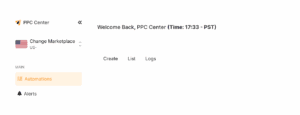
- On the left panel, “Main Menu” look for “Automation”
- Here you have 3 tabs.
- Create
- This is where you can create new automation
- List
- This is where you will see all the automation created
- Logs
- This tab will show you all the automation that has been successfully run or applied to your campaigns
- Create
How to create an automation?
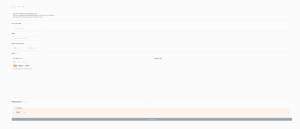
- From the “CREATE” tab you’ll have to fill in all the information requested.
- Choose the “Automation Type” you want to implement it in (campaigns, ad groups, and Keywords)
- Enter the “Name” for this automation
- Next is the Slot Hours, you can either enter 2 slot hours or just one, depending on your customized automation. (Note: The time followed by the system is PST. So, if for example you want it to run at 2:00 PM your time and you are in London, you’ll need to follow or check what 2:00 PM London time is to Pacific Standard Time in the US, which is 06:00 AM. )
- Next is to select the campaigns where you want to implement these changes (you can list up to 10 campaigns for a single rule)
- Defining Actions, here is where you’ll set what Action you want to happen, follow the steps below:
- Toggle the Rule Action (you can add up to 4 max)
- First drop-down you can setup for the system to check which metric is either, greater than, less than, or equal to a certain amount or percentage.
- Once you’ve chosen the metric to analyze based on your condition(greater, less, or equal to) choose the time frame
- After choosing the time frame to be analyzed, you can then choose the action that needs to be done (Pause, Enabled campaigns, or increase or decrease budget)
- Then click the “Save Automation” button
- The “LIST” tab is where you’ll see all the automation you’ve created
- From the “List” you have an “Edit” option
- The “LOGS” tab is where you’ll see the automation history
PPC Center Automation Tool – FAQ
How do I access the Automation Tool?
- Go to https://account.ppccenter.com/
- Log in to your account
- Choose your Marketplace
- On the left panel, under the Main Menu, click on Automation
What are the tabs under the Automation section?
- Create – Build new automation rules here
- List – View and manage all the automations you’ve created
- Logs – Track the history of all automations that have been executed successfully
How do I create a new automation?
- Go to the Create tab
- Choose your Automation Type (Campaigns, Ad Groups, or Keywords)
- Enter a Name for your automation
- Set your Slot Hours (1 or 2 time slots, based on your needs)
- ⚠️ Important: Time is in PST (Pacific Standard Time). Adjust accordingly based on your local time zone.
- Example: If you’re in London and want the automation to run at 2:00 PM local time, set it to 6:00 AM PST.
- ⚠️ Important: Time is in PST (Pacific Standard Time). Adjust accordingly based on your local time zone.
How many campaigns can I apply one automation rule to?
You can select up to 10 campaigns for a single rule.
How do I define the actions for my automation?
- Toggle the Rule Action button (You can add up to 4 rules)
- Choose the metric condition (greater than, less than, or equal to)
- Select the time frame for analysis
- Choose the action to perform:
- Pause
- Enable campaigns
- Increase or decrease the budget
- Pause
- Click Save Automation
Can I edit an existing automation?
Yes, go to the List tab and click Edit on any automation you’ve created.
Where can I view automation history or performance?
The Logs tab shows a record of all automations that have been run and applied.